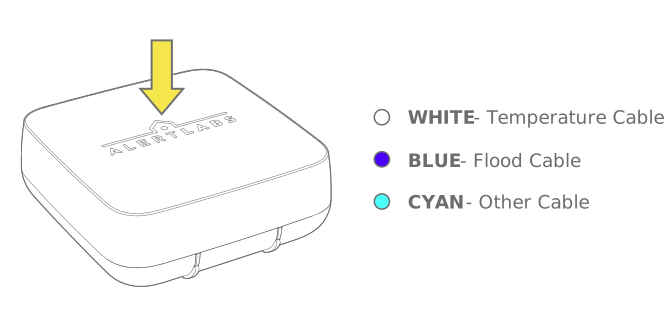
Float Switch Cable
Smart Condensate Switch
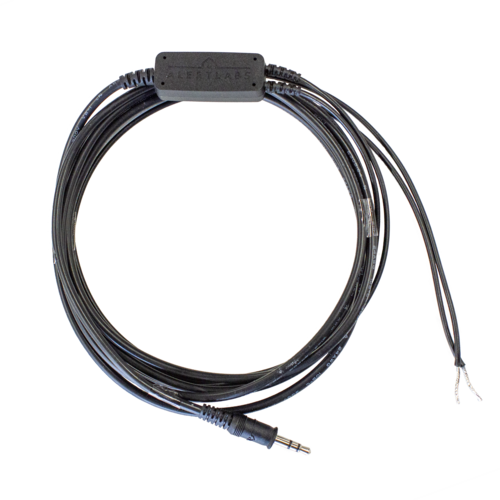

Standard Install

Add sensor and see install instructions at: alertaq.com/addsensor
If you have purchased Professional Services to pre-register your sensor, skip to step 2.

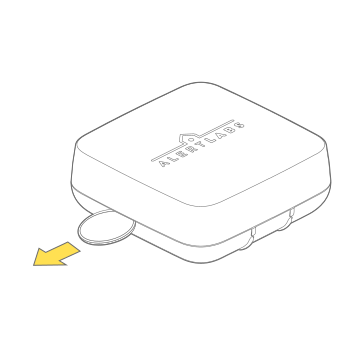
When ready to install, pull the tab to activate the batteries

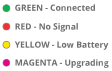
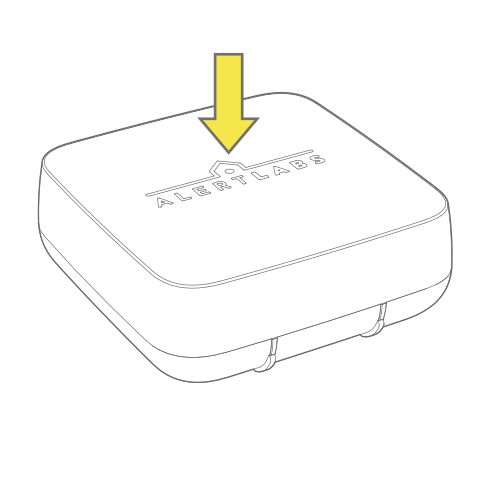
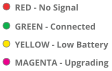
Confirm the LED is green
See troubleshooting if it is not.

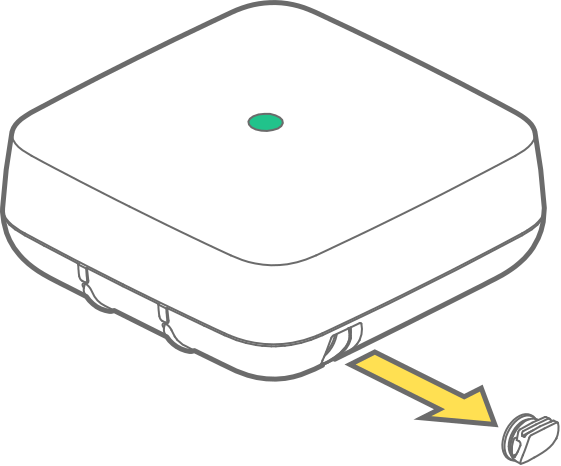
Pull out the rubber plug on the side of Floodie

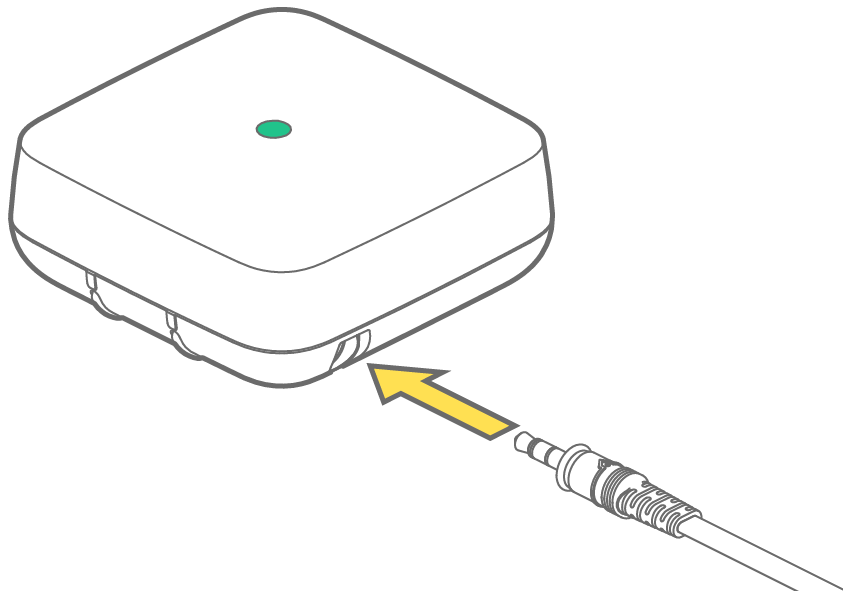
Plug the cable into the accessory port

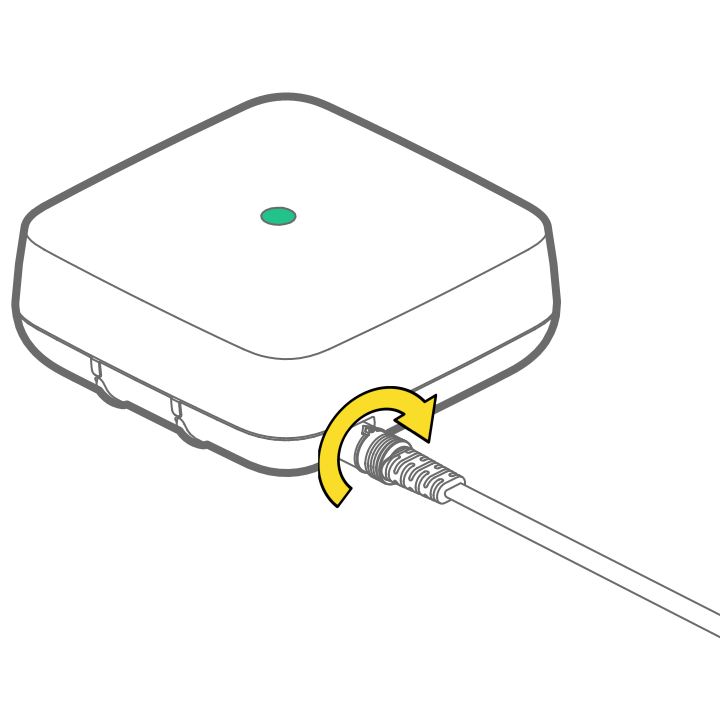
Twist the end of the accessory cable after inserting. This ensures a waterproof seal.

Check the LED is cyan
.svg)
If the wrong color appears, or no light at all, unplug the cable for ten seconds and try again. If the issue persists, contact support@alertlabs.com

Strip and splice the AC unit’s float trip wires
Connect the cable onto the float switch wiresusing the 2 twist-on wire connectors. Wire in parallel across the float switch.
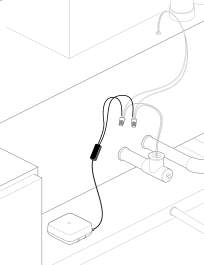

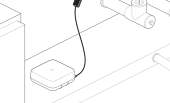
Place the sensor in the A/C drip pan
Set Floodie flat on the floor of the air conditioner's drip pan so the metal contacts rest against the bottom. This lets Floodie detect standing water if the pan begins to fill.

Upload a photo of the installation to the sensor details page in AlertAQ™
To get to the details section of the sensor, select the name of the sensor from the Sensors page. See help article.
If your sensors were not pre-registered, update the sensor name based on its installation.