Flowie O
Compatibility, accessories, and calibration information
Accessories: For pulse output water meters, use the Pulse Cable accessory. Note: To check the compatibility of your pulse meter, contact your Customer Success Manager, or email customersuccess@alertlabs.com If Flowie-O cannot be strapped around the water meter or if the signal strength needs to be improved (e.g., the water meter is in a pit), use the Extension Cable accessory. To order accessory cables, contact your Customer Success Manager, or email customersuccess@alertlabs.com
Calibration: To ensure the most accurate water use data, begin the calibration process immediately after installing Flowie-O. Flowie-O will immediately report water usage and any leaks or high water events - but that usage will be a general value and may not accurately reflect the water usage through your particular meter make and model. Calibrating ensures we are reporting accurate water volumes.
How to calibrate your device
Watch the video
Submit first water meter dial photo
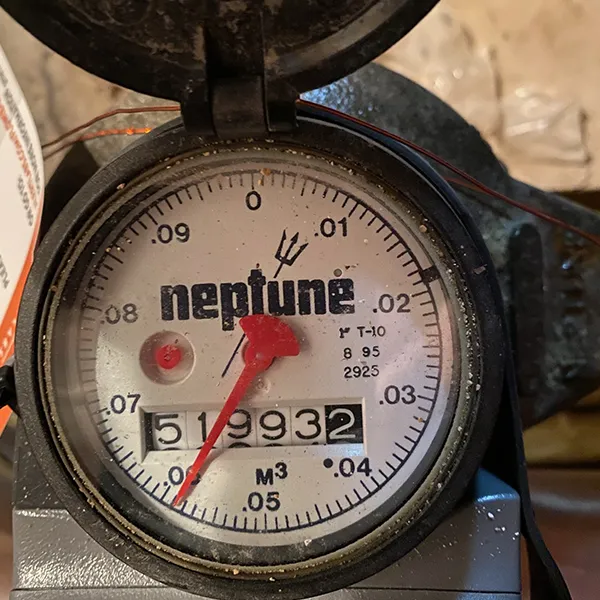
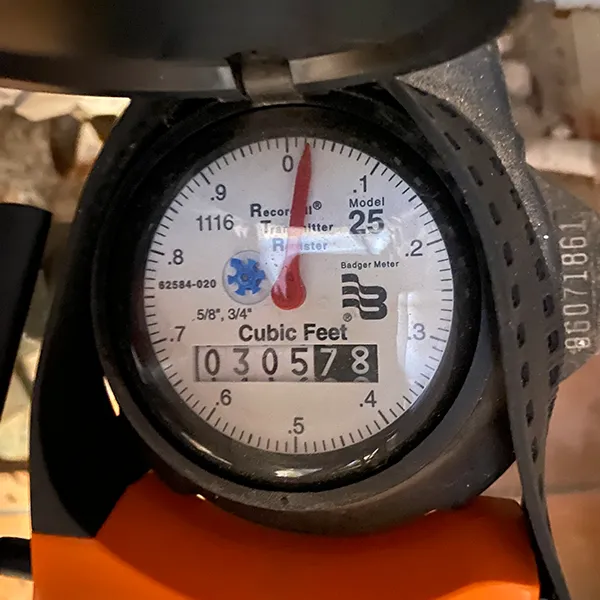
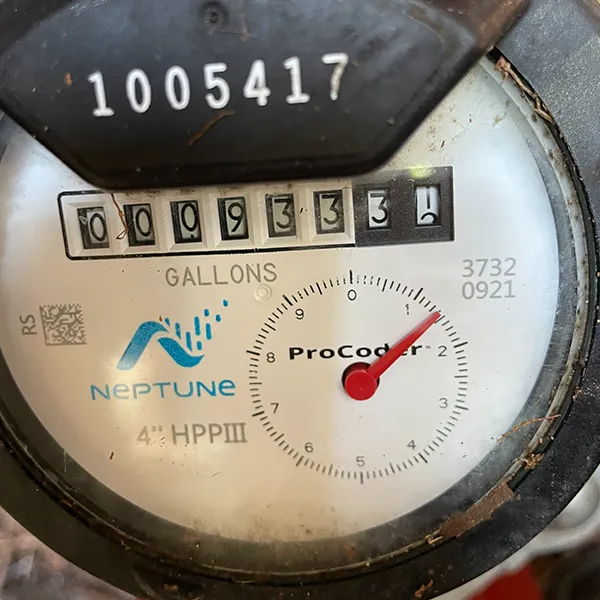
Upload a photo of the water meter dial. Make sure all the numbers can be read (see Examples of good calibration photos below). Wait for Alert Labs to review. You may need to repeat this step if the numbers cannot clearly be seen.
Under device settings you will see one of two buttons:

Wait 1 week
AlertAQ™ gathers water use data during this period to calibrate your sensor.


Submit second water meter dial photo
Upload a second photo that shows the water meter dial with clearly legible numbers (see Examples of good calibration photos).

Congrats! Flowie-O is calibrated
The next time you sign in to AlertAQ™ you may see different total gallons or liters of water displayed in your account. These new, calibrated numbers more closely match the volume of water on your water bill.
Examples of good calibration photos
How to calibrate video
